
The Time Context
Filter data to a specific point in time or time range.
What is the time context?
The time context expresses the specific point in time or time range that you've filtered the data to. For example, you can look at the Turnover Count valid at December 13, 1989 or the Turnover Count over January 1, 1989 to December 31, 1989.
The Time picker
Change the time context by using the Time picker in the Analysis Context toolbar, which is located at the top of charts and analyses.
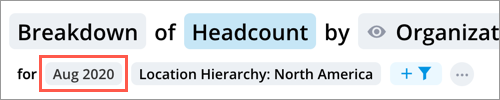
In the Time picker, you'll find options to change the granularity, time period, time window, for your charts. You will only be available to change the time setting on individual chart cards in anlayses that are set to Update automatically or Select a specific time period.
For more information, see Change the Time Context.
The time granularity
The granularity of your chart adjusts the frequency at which results are calculated and shown. For example, you can choose to switch your granularity from a monthly to a quarterly view. This means the results are shown for the selected quarters. It's easy to analyze trends over long periods of time, but sometimes you need to analyze data at a more granular level such as on a daily basis to answer your questions.
The time period
Choose a time period to filter the data to a specific point in time or a time range. The time period is inclusive, so selecting a range from March 2017 to March 2018 includes data from March 1st, 2017 up to the most complete date as of March 31st, 2018.
The calendar
If you have multiple business calendars, switch between them to analyze your data against the timelines that matter to you. For example, use the Gregorian calendar to view annual turnover trends, or upload your fiscal calendar to compare headcount costs against quarterly financial plans.
Considerations for multiple calendars
Support for multiple calendars is limited in some workflows. Review the following guidelines to understand where calendar selection is restricted or where using multiple calendars isn't recommended:
- Vee: The default calendar is used to analyze data. The default calendar must be selected for Vee to explain a visualization or an analysis.
- Vee Boards: Vee Boards can generate AI explanations for charts that use a non-default calendar. However, Vee Boards isn't calendar-aware—it generates its summary based on the underlying data only, without accounting for calendar differences.
- Planning: Plans can only use the default calendar.
The time window
The time window determines the range of time (number of time periods) that is displayed on the chart. For example, if you set the granularity to months and the time window to 6, you'll see six months of data displayed on the chart. The time window option is only available for time-based visuals.
The time setting
When analyses are set to Update automatically or Select a specific time period in the Analysis Context toolbar, you have the option to change the time setting. The time setting determines the time period that is displayed on individual chart cards in the analysis. You can choose a time setting from the following options:
- Relative to analysis: This is the default setting. A chart with this time setting will follow the time period that is set in the analysis context.
- Fixed: A chart with this time setting will have a different time period, granularity, and calendar than the analysis context, even if the analysis has the time granularity synchronized. The time period and granularity for this chart can be set manually. For example, if you select Fixed and set the time period to August 2018 on a chart in an analysis, only the fixed chart will show August 2018 while the rest of the charts will show the most updated data.
Note: If you've previously set a chart to Fixed in an analysis and switched the analysis context to Time period as captured, the chart will no longer be fixed. If the analysis context is switched back to Update automatically or Select a specific time period, the chart will be fixed again to the last set time period.
In this section